A Hetzner server can stop responding even though the data on its drives is still recoverable. A failed kernel update, damaged bootloader, incorrect mount configuration, degraded software RAID, full root filesystem or broken network settings can all make a healthy-looking dedicated server appear offline.
The Hetzner Rescue System gives an administrator a separate Linux environment that does not depend on the installed operating system. From there, you can inspect disks, assemble RAID, activate LVM, mount filesystems, copy data and repair the local boot path. It is an essential recovery tool, but it is not an automatic repair button.
This guide explains a cautious workflow for dedicated servers managed through Hetzner Robot and notes where the Hetzner Cloud rescue process differs. Device names and layouts vary. Read the output from your server before adapting any command.
Use these procedures only on systems you are authorized to administer. Rescue access provides full control of attached storage. Protect important data before write operations, filesystem repairs, RAID changes or bootloader work.
What the Hetzner Rescue System Does
Hetzner describes its dedicated-server rescue system as a Debian-based live environment that starts through PXE network boot and runs in memory. It does not need the operating system installed on the local drives to start. That separation lets you work on a server whose normal boot is damaged.
The rescue system is useful when:
- The server stopped responding after a reboot or package update.
- GRUB cannot locate the installed kernel or root volume.
- An invalid
/etc/fstabentry blocks startup. - The root filesystem is full or reports errors.
- Software RAID is degraded or an expected array is missing.
- LVM volumes are not being activated during normal boot.
- SSH, firewall or network configuration prevents remote access.
- You need to copy data before reinstalling or replacing a disk.
Activating rescue does not change the server that is currently running. It schedules the next boot to use the temporary environment. On Hetzner Robot, that activation is valid for one boot and expires if you do not restart within 60 minutes.
Check Hetzner Status and the Failure Scope First
The keyword data separates two common intentions. Someone searching for Hetzner server status may be checking for a provider incident. Someone searching for Hetzner server down may have one broken machine. Establish which situation you have before changing the boot path.
Record the incident time and check:
- Whether the server responds from more than one external network.
- Whether unrelated Hetzner services in the same account or location are reachable.
- Whether Robot reports the dedicated server as running.
- Whether the failure began immediately after a known system change.
- Whether a provider incident or maintenance notice matches the server location.
- Whether a console, monitoring alert or previous boot log shows a local failure.
If the rescue environment becomes reachable at the same public address while local boot remains unreachable, the provider network and server hardware are at least functional enough to run rescue. The fault is then more likely to be within the installed storage, operating system or configuration.
Know Whether You Are Recovering a Robot Dedicated Server or Hetzner Cloud Server
The screenshots in this guide show Hetzner Robot, the administration interface for dedicated root servers. Robot provides Rescue and Reset tabs for the selected physical server.
Hetzner Cloud uses the Hetzner Console instead. Its Rescue menu can either enable rescue for the next restart or enable rescue and power-cycle the instance immediately. The recovery concepts are similar, but storage devices, snapshots and console controls differ. Do not follow a dedicated-server RAID procedure on a cloud VM unless its actual device output supports it.
| Environment | Control interface | Typical storage considerations |
|---|---|---|
| Dedicated root server | Hetzner Robot | Physical SATA or NVMe drives, software RAID, hardware RAID or LVM |
| Hetzner Cloud server | Hetzner Console | Virtual system disk, optional attached volumes and snapshot capability |
Activate the Rescue System in Hetzner Robot
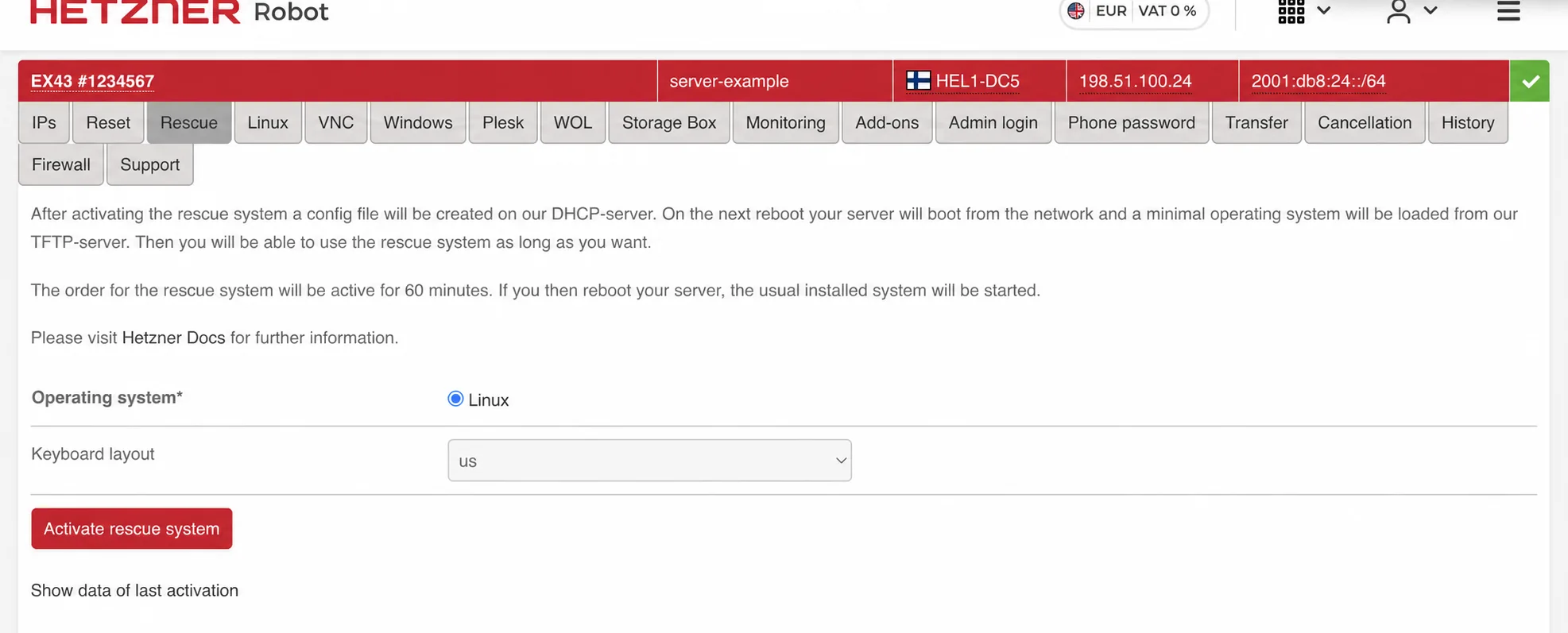
Open Robot, select the correct server and choose the Rescue tab. Select the Linux rescue operating system and keyboard layout, then choose Activate rescue system . If you have an approved SSH public key stored in Robot, select it. Otherwise, Robot displays the temporary root password created for the session.
Before continuing, verify the server ID and public address against your incident record. Administrators with several similar systems can easily schedule rescue on the wrong machine during an outage.
The activation creates a network-boot instruction for the next restart. It remains pending for 60 minutes. If the server is not restarted in that window, the instruction expires and a later reboot uses the installed drives.
Restart the Server into Rescue Without Guessing at Reset Options
If the installed system still accepts SSH, prefer a controlled reboot after stopping important applications and flushing writes:
sync
systemctl reboot
If the server is unreachable, open the Robot Reset tab. The options shown depend on the server and its remote management capabilities.
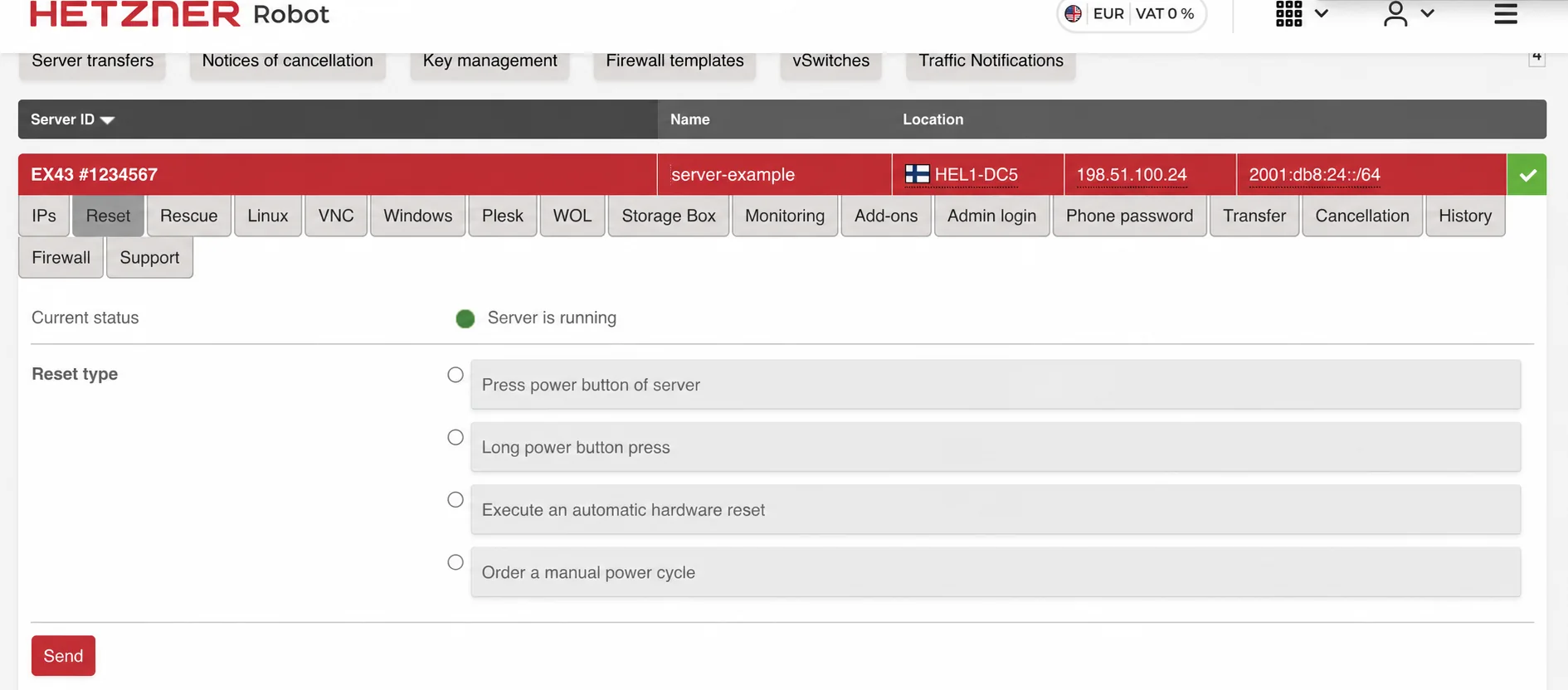
Robot provides several reset methods. Use the least disruptive method that can restart the affected server.
A simulated power-button press may allow a responsive operating system to shut down cleanly. A long press, automatic hardware reset or manual power cycle is more forceful and can interrupt pending disk writes. Use a forced reset only when a controlled reboot is unavailable and the recovery need outweighs that risk.
After the restart, wait for the rescue environment to finish network boot before trying SSH.
Connect to the Rescue Environment by SSH
ssh root@198.51.100.24The address above is reserved for documentation. Use the public address of your server and authenticate with the selected SSH key or the temporary rescue password.
SSH can warn that the remote host identification changed. This is expected because the rescue environment presents a different host key from the installed operating system. Do not disable host-key checking globally. Confirm you are connecting to the correct address, then handle only that address:
ssh-keygen -f "$HOME/.ssh/known_hosts" -R 198.51.100.24Record the new rescue fingerprint. When normal local boot returns, expect the installed system to present its original key again.
Capture the initial state before mounting anything:
date -u
uname -a
ip -br address
findmnt /
lsblk -e7 -o NAME,MAJ:MIN,SIZE,FSTYPE,TYPE,MOUNTPOINTS,UUID,MODEL,SERIAL
blkid
fdisk -l
cat /proc/mdstat
Identify Disks, Software RAID and LVM
On a Hetzner dedicated server, the installed system may span several physical drives. Common device names include /dev/sda , /dev/sdb and NVMe devices such as /dev/nvme0n1 . RAID devices often appear as /dev/md0 , /dev/md1 and /dev/md2 . LVM logical volumes appear below /dev/mapper/ .
Use relationships from lsblk , not device size alone. If RAID is present, inspect it before attempting assembly or repair:
cat /proc/mdstat
mdadm --examine --scan
mdadm --detail /dev/md2 2>/dev/null
For LVM:
pvs
vgs
lvs -a -o +devices
vgchange -ay
ls -l /dev/mapper
Do not run installimage , initialize a physical volume, create a new filesystem or recreate RAID while attempting to preserve an existing installation. Hetzner's installimage workflow is designed for operating-system installation and can wipe selected drives.
Mount the Installed System Read-Only First
Choose the root filesystem based on your actual storage map. A default software RAID installation may store root on an MD device; an LVM installation may use a mapper volume.
mkdir -p /mnt/system
mount -o ro /dev/md2 /mnt/system
findmnt /mnt/system
ls -la /mnt/system
cat /mnt/system/etc/os-release
cat /mnt/system/etc/fstab
Substitute the correct device. A real Linux root normally contains etc , var , usr , home and boot . Separate boot, EFI, home or application filesystems may need their own mount points later.
If mounting fails, save the exact message. A missing array, inactive volume group, wrong filesystem type, damaged superblock and already-mounted target require different responses. Do not treat every error as permission to run an automatic filesystem repair.
Diagnose the Failed Local Boot
Start with the previous boot journal where persistent journals are available:
journalctl --directory=/mnt/system/var/log/journal --list-boots
journalctl --directory=/mnt/system/var/log/journal -b -1 -p warning..alert
journalctl --directory=/mnt/system/var/log/journal -b -1 | tail -250
Also review distribution logs and recent package activity:
tail -200 /mnt/system/var/log/syslog 2>/dev/null
tail -200 /mnt/system/var/log/messages 2>/dev/null
tail -200 /mnt/system/var/log/kern.log 2>/dev/null
tail -100 /mnt/system/var/log/apt/history.log 2>/dev/null
tail -100 /mnt/system/var/log/dnf.log 2>/dev/null
Look for the first failure in the chain: a missing UUID, degraded array, unrecognized root device, initramfs error, kernel panic, filesystem mount failure or failed package transaction. Services that stop afterward may only be consequences.
Check space and inode exhaustion:
df -hT /mnt/system
df -ih /mnt/system
du -xhd1 /mnt/system/var 2>/dev/null | sort -h | tail -20
If local boot succeeds but networking is absent, compare the installed interface configuration with the actual hardware interface names visible in rescue. This is especially relevant after a server or mainboard replacement.
Recover Important Data Before Repair
If the filesystem is readable, preserve irreplaceable data before rebuilding metadata or boot components. Priorities often include application data, databases, uploads, configuration, encryption material, SSH keys and a copy of the storage map.
rsync -aHAX --numeric-ids --info=progress2 /mnt/system/home/ backup-user@203.0.113.40:/recovery/server-home/Both example addresses use documentation-only ranges. Use an approved destination with enough capacity. If reads produce I/O errors or a physical disk repeatedly disappears, reduce unnecessary access. A block-level recovery plan may be safer than ordinary file copying.
For software RAID, remember that RAID availability is not a backup. A healthy mirror can contain the same deletion, corruption or compromised files on every member.
Repair Filesystems and the Linux Startup Path Carefully
Examine filesystems before changing them
Filesystem checks must target the correct unmounted filesystem. For ext filesystems, begin with a non-writing examination:
umount /mnt/system
fsck -n /dev/md2
For XFS, use the matching tool:
xfs_repair -n /dev/md2Do not run an automated repair merely because the server is down. Hetzner's current cloud filesystem guidance explicitly recommends creating a snapshot or backup before repair because repair operations can cause data loss in rare cases.
Use a chroot for specific Linux repairs
When important data is protected and the evidence points to an installed-system configuration problem, mount the root read-write and prepare a chroot:
mount /dev/md2 /mnt/system
chroot-prepare /mnt/system
chroot /mnt/system /bin/bash
Hetzner's rescue environment includes chroot-prepare for the required bind mounts. Inside the installed system, match the repair to the evidence:
- Correct a confirmed invalid UUID or mount option in
/etc/fstab. - Complete an interrupted package configuration.
- Rebuild the initramfs after confirming missing RAID, LVM or filesystem support.
- Rebuild GRUB configuration after confirming BIOS or UEFI mode and the correct target disks.
- Correct a known interface-name or route mismatch.
- Remove only verified expendable data from a full filesystem.
A bootloader command that fits one Ubuntu BIOS installation can be wrong for a UEFI AlmaLinux server with mirrored EFI partitions. Confirm the distribution, boot mode, partition scheme and RAID layout before installing GRUB.
Exit the Hetzner Rescue System
Leave the chroot and unmount the installed system cleanly:
exit
sync
umount -R /mnt/system
reboot
On a Robot dedicated server, rescue activation is valid for one boot. The next restart normally loads the installed operating system from disk unless rescue was activated again. Hetzner Cloud also leaves rescue on restart; deactivate it first in Console if it was explicitly kept active.
Watch the first normal boot through the available console and verify more than a successful ping:
- All expected RAID arrays and LVM volumes activate.
- Root, boot, EFI and application filesystems mount.
- The public network, routes and firewall work.
- SSH presents the installed system's expected host key.
- Databases and application services start without new corruption errors.
- Monitoring and backups resume after the incident.
Common Hetzner Rescue Problems
| Symptom | Likely direction | Safe next check |
|---|---|---|
| Server boots from disk instead of rescue | Activation expired or the restart occurred before activation | Activate rescue again and reboot within 60 minutes |
| Robot says running but SSH is unavailable | Installed OS, firewall, network or SSH problem | Boot rescue and compare connectivity |
| SSH host key changed | Expected rescue-system key | Verify the address and manage only its known_hosts entry |
| Root partition is not visible | Software RAID, LVM, hardware RAID or missing disk | Inspect lsblk, /proc/mdstat, pvs and controller state |
| RAID is degraded | Failed, missing or stale member | Record member state and events before assembly or rebuild |
| Mount returns filesystem errors | Wrong device or damaged filesystem | Confirm type with blkid and examine while unmounted |
| Normal boot works but networking fails | Interface-name, address, route or firewall mismatch | Compare installed network files with rescue hardware names |
When to Stop and Get Recovery Help
Stop experimenting when you cannot map the storage layout, RAID members disagree, LVM metadata appears damaged, a disk reports I/O errors, filesystem repair proposes extensive changes or the machine holds data that cannot be recreated. Repeated write attempts can reduce later recovery options.
iServerSupport provides a hands-on Server Crash Recovery Service for infrastructure you already own or rent, including Hetzner dedicated and cloud servers. An administrator can inspect rescue, protect recoverable data, diagnose RAID and LVM, repair the Linux startup path and verify the server after normal boot. Recovery work is billed at $49 per administrator hour.
For another urgent production fault, use Emergency Server Support . For ongoing administration after recovery, see Linux Server Management .
Hetzner Rescue System Questions
What is the Hetzner Rescue System?
It is a temporary Linux live environment that starts over the network and runs independently of the installed server disks. It provides root access for diagnosis, data recovery and repair when local boot is unavailable.
How long does Hetzner rescue activation remain valid?
The scheduled rescue boot must be used within 60 minutes. For a Robot dedicated server, activation applies to one boot. Once rescue has started, it remains active until the server is rebooted.
Does the Hetzner Rescue System delete server data?
No. Booting rescue does not erase the attached drives. Commands run from rescue can still alter or destroy data, especially filesystem, RAID, partitioning and installimage operations.
Can I install Ubuntu from the Hetzner Rescue System?
Yes, Hetzner provides installimage for operating-system installation. That is not a recovery command. It repartitions and installs to selected drives, so do not run it when the goal is to preserve the existing server.
How do I exit the Hetzner Rescue System?
Exit any chroot, synchronize writes, unmount installed filesystems and reboot. The next normal boot loads the operating system from disk unless rescue has been activated again.
Server not booting or trapped in rescue mode?
Our engineers can diagnose failed boots, protect recoverable data and work through RAID, LVM, filesystem and startup problems.