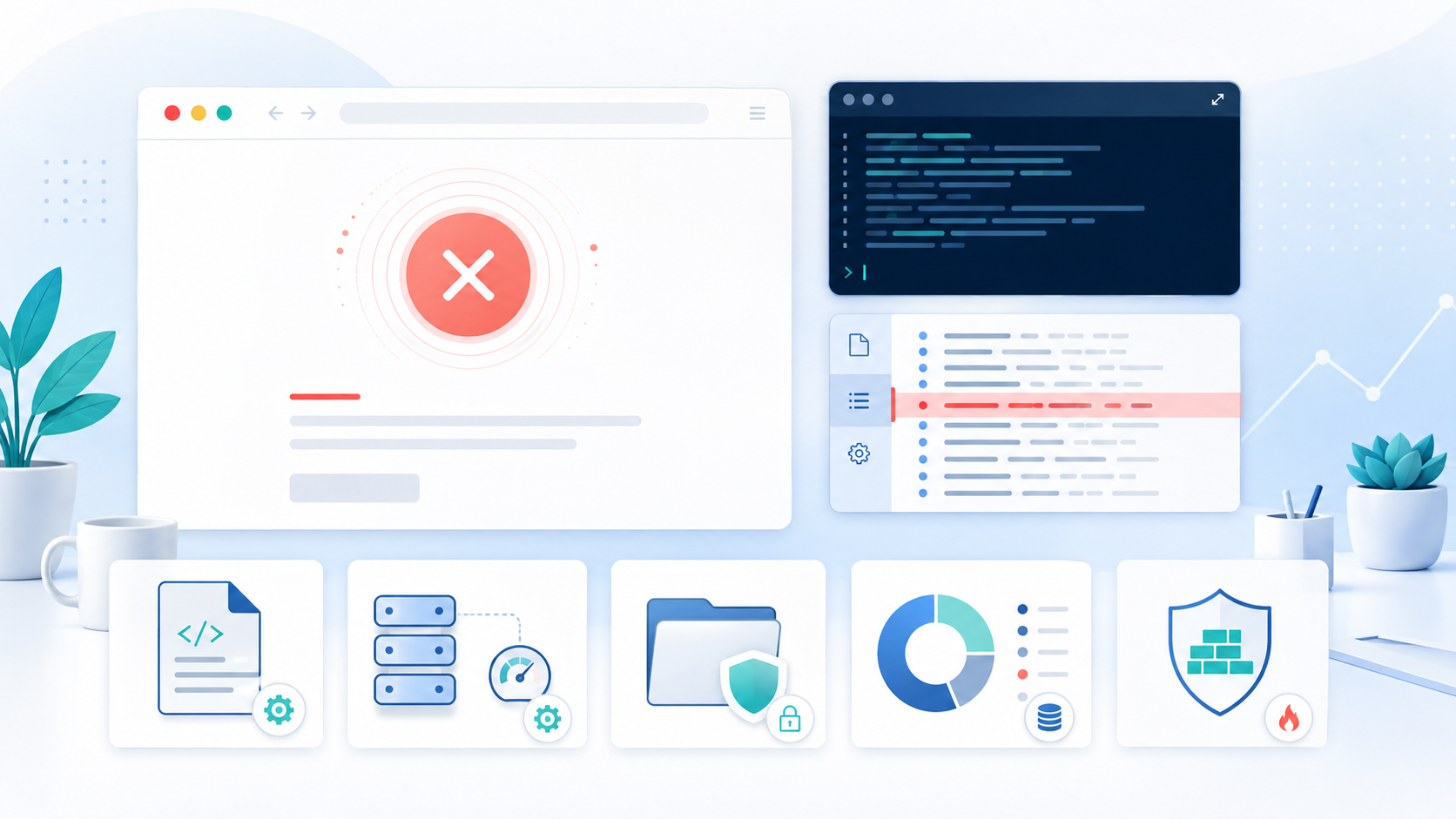
A cPanel 500 Internal Server Error means the web server accepted a request but could not complete it. The browser shows a generic failure because the useful explanation normally exists on the server, not on the public error page.
On a cPanel server, the cause may be a malformed .htaccess rule, a PHP fatal error, an exhausted PHP memory limit, incorrect ownership, a failed PHP-FPM pool, a full filesystem, or a security rule that interrupted the request. Those problems require different fixes. Restarting services or changing permissions at random may hide the evidence, weaken security, or create a second fault.
This guide uses a cautious investigation path. It helps you identify whether the error affects one request, one website, one cPanel account, or every hosted domain, then find the matching log entry before changing anything.
Work only on servers and cPanel accounts you are authorized to administer. Make a restorable copy of configuration files before editing them, and keep logs containing customer data private.
Quick Diagnostic Path for a cPanel 500 Error
Use this order when a website begins returning HTTP 500:
- Confirm the status code and record the exact failing URL.
- Note the time, timezone, domain and action that triggers the error.
- Test whether the problem affects one page, one site or every site.
- Reproduce the error once while watching the correct domain or PHP log.
- Read the first relevant error, not only the last line in the file.
- Match the log signature to
.htaccess, PHP, permissions, PHP-FPM, storage, ModSecurity or the application. - Apply the smallest reversible correction.
- Retest the failed action and confirm that no new errors appear.
If this is a live outage and you cannot safely isolate the cause, use an experienced cPanel server management team. For an active incident requiring immediate one-time help, request emergency server support.
What an HTTP 500 Error Tells You
HTTP 500 is a broad server-side response. It confirms that the request reached a web-serving layer, but it does not tell you which component failed.
The visible page may be generated by Apache, LiteSpeed, an NGINX proxy, PHP-FPM, a content delivery network, or the application itself. A WordPress plugin can return the same public status code as an invalid Apache directive. The browser message alone cannot distinguish them.
Start by confirming the response without downloading the whole page:
curl -sS -o /dev/null -w 'HTTP %{http_code}\n' https://example.com/failing-pathAlso test a known simple URL on the same domain. If only one form submission, API route or admin action fails, the investigation should begin with that application path. If static files and every PHP page fail, inspect the domain configuration and PHP handler. If unrelated domains fail at the same time, investigate shared services and server resources first.
One Page, One Domain or Every Domain?
| Scope | More likely causes | First place to look |
|---|---|---|
| One URL or action | Application exception, plugin, PHP limit, security rule | Application and domain error logs |
| All PHP pages on one domain | .htaccess, PHP version, PHP-FPM pool, permissions | Domain log and PHP-FPM log |
| One cPanel account with several domains | Account ownership, quota, account-level PHP configuration | Account logs, quota and ownership |
| Many unrelated domains | Apache, LiteSpeed, PHP-FPM, disk, inode or system fault | Service logs and server health |
| Works at origin but not through proxy | Proxy, CDN, cache or origin routing | Compare direct origin and proxied requests |
This scope check prevents a common mistake: spending time inside one WordPress installation when every PHP site on the server is failing.
Record the Request Before You Change the Server
Write down:
- The full URL and request method
- The UTC time of the test
- Whether the visitor was logged in
- The action immediately before the error
- Whether the problem is consistent or intermittent
- Any recent deployment, PHP change, plugin update or migration
- Whether the error began after a cPanel, EasyApache or operating system update
An exact timestamp lets you separate the relevant message from old warnings. Reproduce the request once, then examine a narrow time window. Repeatedly refreshing a failing checkout or upload can create duplicate transactions or flood the log.
Check the Correct cPanel Error Log
The correct log depends on the domain, web server and PHP handler. cPanel's own internal PHP-FPM log is not necessarily the log for a hosted website.
Common locations include:
/home/CPANELUSER/public_html/error_log
/home/CPANELUSER/logs/
/var/cpanel/php-fpm/CPANELUSER/logs/error.log
/etc/apache2/logs/error_log
/usr/local/apache/logs/error_log
Paths can be customized. A domain using PHP-FPM may write to a per-domain file under the account's logs directory. cPanel documents this pattern as a filename based on the domain, such as example_com.php.error.log. Its PHP-FPM directive guide explains the per-domain configuration, while the official cPanel and WHM log reference distinguishes website logs from cPanel's internal service logs.
For a site-level log, watch new entries while making one controlled test request:
tail -F /home/CPANELUSER/public_html/error_logFor a known PHP-FPM domain log:
tail -F /home/CPANELUSER/logs/example_com.php.error.logUse the actual account and domain values. Do not paste placeholders into commands unchanged.
If no message appears, verify that you are following the active log, then check the global web-server log and any proxy layer. A missing entry can itself be a clue: the request may be failing before it reaches PHP, or a CDN may be returning the response.
A Useful Sanitized Log Example
Suppose one test at 14:22 UTC returns 500 and immediately creates this sanitized line:
[05-Sep-2026 14:22:18 UTC] PHP Fatal error: Allowed memory size exhausted in /home/storeapp/public_html/wp-content/plugins/catalog-sync/worker.php on line 418That is stronger evidence than the public error page. It identifies the execution layer, the type of failure and the responsible code path. The correct response is to understand why that worker consumed memory, not to keep increasing the limit until the symptom disappears.
Cause 1: Invalid Rules in .htaccess
An .htaccess change can break a whole directory instantly. Common examples include a misspelled directive, unsupported syntax, a rewrite loop, or a PHP setting that the active handler does not allow there.
Apache may record a message similar to:
/home/exampleacct/public_html/.htaccess: Invalid command 'RewiteRule', perhaps misspelled or not permitted by the server configurationAnother recognizable pattern is:
php_value not allowed herecPanel notes that php_value directives in .htaccess can generate a 500 error with certain PHP handlers. Manage PHP values through cPanel > Software > MultiPHP INI Editor or the appropriate per-domain PHP configuration instead. See cPanel's official guidance for the `php_value not allowed here` error.
Before editing, preserve the file:
cp -a /home/CPANELUSER/public_html/.htaccess /home/CPANELUSER/public_html/.htaccess.before-500-fixThen correct only the logged directive. If the file is complex and the site owner authorizes isolation testing, temporarily moving it can confirm whether it is involved, but doing so may disable redirects, access controls, caching and application routing. Restore it promptly and rebuild the required rules rather than leaving the site without them.
After a server-level Apache configuration change, validate syntax before a reload:
apachectl -tDo not treat a successful syntax test as proof that every rewrite behaves correctly. It checks configuration syntax, not the logic of each application route.
Cause 2: PHP Fatal Errors and Memory Exhaustion
cPanel identifies PHP memory exhaustion, unavailable modules and application code faults as frequent reasons for PHP sites returning 500. Its HTTP 500 troubleshooting article recommends reproducing the request while watching the relevant log.
Typical signatures include:
PHP Fatal error: Uncaught TypeError...
PHP Fatal error: Allowed memory size exhausted...
PHP Startup: Unable to load dynamic library...
PHP Parse error: syntax error, unexpected token...
The fix depends on the signature:
- Uncaught exception or type error: trace the stack to the responsible application, plugin, theme or deployment.
- Memory exhausted: inspect the code path and workload before changing
memory_limit. A modest adjustment may be valid, but an unbounded query or recursive plugin will consume the new limit too. - Missing extension: compare the domain's active PHP version with required modules in WHM > Software > EasyApache 4 or the applicable package configuration.
- Parse error: roll back or correct the exact changed file. Do not edit vendor files blindly on a production site.
Confirm the domain's PHP version in cPanel > Software > MultiPHP Manager. The command-line php -v result may not match the version serving that website, especially on a server with several installed PHP versions.
Cause 3: Incorrect Ownership or Permissions
Files copied as root, restored under the wrong account, or unpacked with unsuitable modes can make PHP unable to read code or write cache, session and upload data. Logs may contain Permission denied, failed to open stream, or an execution-related message.
Inspect a specific path before changing it:
namei -l /home/CPANELUSER/public_html/index.php
stat /home/CPANELUSER/public_html/index.php
These commands show the ownership and permissions along the path. Compare the result with a working file in the same account and with the server's active PHP handler.
Do not solve an HTTP 500 error with chmod -R 777. World-writable files expose the website to unnecessary risk and may still fail under handlers that reject insecure permissions. Do not run broad recursive chown commands until you understand symlinks, shared paths and application-specific ownership.
cPanel's support guidance on permission-related HTTP 500 errors shows why the active handler and module context matter. Correct the smallest confirmed path, then retest.
Cause 4: A PHP-FPM Pool or Handler Problem
A domain can fail even when Apache remains healthy if its PHP-FPM pool is stopped, repeatedly crashing, out of workers or unable to create its socket. First confirm whether the affected domain uses PHP-FPM in WHM > Software > MultiPHP Manager.
Then inspect the domain-specific FPM log and service state. Useful read-only checks include:
systemctl --failedThe service name for a website's PHP version varies by EasyApache package. Confirm the domain's handler and PHP version in WHM, then inspect the matching service rather than guessing or restarting every PHP service.
Look for:
- A pool that exits immediately because of invalid configuration
- Repeated child crashes
- A missing or inaccessible Unix socket
- A reached child or worker limit during traffic bursts
- Version mismatch after a PHP change
- A module that fails during PHP startup
Collect the error before restarting. A restart may restore service, but if it does not address the trigger, the 500 response will return. If resource pressure is involved, follow the account and process investigation in our cPanel server high load guide.
Cause 5: Full Disk, Exhausted Inodes or Read-Only Storage
A server can have free memory and still return HTTP 500 when PHP cannot create a session, cache file, temporary upload or log entry. Check both space and inodes:
df -hT
df -ih
findmnt -no TARGET,OPTIONS /
Pay particular attention to /, /home, /tmp, /var and any separate partition used by the affected account. A filesystem at 100 percent use, no available inodes, or a read-only mount can affect many unrelated domains.
Do not start deleting logs, backups or database files simply to make space. Identify what grew, determine whether it is active, and protect anything required for recovery or compliance. If the server uses account quotas, compare the affected account with its assigned limit as well as the filesystem's total capacity.
Cause 6: A ModSecurity Rule or Web Application Firewall
A security rule can interrupt a legitimate request, particularly an admin action, API payload or form containing code-like text. Do not assume ModSecurity is responsible merely because a POST request failed.
In WHM > Security Center > ModSecurity Tools, correlate the failing request with the hits list and note the rule ID, hostname, URI and timestamp. Depending on the installed version and configuration, audit data may also be available beneath /etc/apache2/logs/modsec_audit/.
cPanel strongly recommends keeping ModSecurity enabled. If a confirmed false positive requires an exception, limit it to the necessary rule and domain. Do not disable the full ruleset, delete vendor rules, or leave protection off after testing. The WHM ModSecurity Tools documentation explains how to examine hits and manage individual rules.
Also check upstream services such as Cloudflare or another web application firewall. An upstream block usually has its own event record and may return a different status, but custom configurations can obscure the source.
Cause 7: Application, Plugin or Deployment Failure
When only one action fails and the web-server configuration is valid, inspect what changed inside the application. Examples include:
- A WordPress plugin or theme update introducing an incompatible PHP call
- A deployment missing vendor dependencies
- Incorrect environment variables or secrets
- A cache directory that no longer exists or is not writable
- A database connection failure handled as a generic 500 response
- A cron or queue worker leaving incomplete state
- Code written for a different PHP version
Use the application log and stack trace where available. For WordPress, enable debug logging only in a controlled manner and avoid displaying detailed errors to visitors. Restore the previous stable plugin, theme or release when the timing and log evidence point to that change.
Do not replace the whole application or restore an old backup before checking whether current customer data will be overwritten. Code rollback and database rollback are different operations.
When Every Website Returns 500
If several unrelated accounts fail simultaneously, move outward from the application layer. Check:
date -u
uptime
systemctl --failed
df -hT
df -ih
apachectl -t
Then review the web-server and PHP service logs for the same timestamp. Shared failures can follow:
- A broken global Apache include
- A failed EasyApache or PHP package operation
- PHP-FPM services failing across versions
- Full
/var,/tmp,/homeor root filesystem - Exhausted inodes
- A read-only filesystem
- A proxy or LiteSpeed configuration problem
- A security product update affecting requests globally
Avoid restarting Apache, PHP, MySQL and the whole server in sequence. That destroys useful process state and makes it difficult to know which action changed the result. Record the evidence, validate configuration, and address the failed layer.
Safe Verification After the Fix
Clearing the visible error is not enough. Verify the original action and the controls around it.
- Repeat the exact failing request once.
- Confirm the expected HTTP status and page content.
- Watch the relevant log for new warnings or fatal errors.
- Test a static asset and a separate PHP page on the domain.
- Test login, forms, uploads, scheduled tasks or checkout if they were involved.
- Confirm file ownership and permissions remain appropriately restricted.
- Confirm ModSecurity or any other protection disabled for testing is enabled again.
- Purge only the relevant application, proxy or CDN cache.
- Monitor the domain after normal traffic resumes.
For a simple status check:
curl -sS -o /dev/null -w 'HTTP %{http_code} in %{time_total}s\n' https://example.com/failing-pathA 200 response is encouraging, but application-specific testing still matters. A checkout may return 200 while failing to write an order, and an admin page may load while background requests continue to return 500.
What Not to Do During a cPanel 500 Incident
- Do not set files and directories to
777. - Do not disable ModSecurity across the server without evidence.
- Do not increase every PHP limit at once.
- Do not delete logs before recording the relevant entries.
- Do not reboot before checking whether the problem is limited to one domain.
- Do not restore a full account backup over current data without a recovery plan.
- Do not expose
phpinfo()or detailed PHP errors publicly. - Do not copy commands from another server without confirming paths, handlers and versions.
These shortcuts can exchange one visible error for a security problem, lost evidence or a wider outage.
Preventing Repeat HTTP 500 Errors
A useful prevention plan addresses both the immediate cause and the conditions that allowed it to reach production:
- Monitor HTTP status from outside the server, not only whether the host responds to ping.
- Alert on disk space, inode use, memory pressure and failed services.
- Test PHP and application changes on staging before production.
- Keep a versioned copy of Apache includes,
.htaccessrules and PHP settings. - Record each domain's PHP version, handler and required modules.
- Review ModSecurity false positives instead of permanently disabling protection.
- Use least-privilege permissions and correct account ownership during migrations.
- Retain application and service logs long enough to investigate intermittent faults.
- Keep tested backups and document how to restore code without overwriting newer business data.
- Review recurring 500 responses even if a service restart appears to clear them.
Routine monitoring is especially valuable for intermittent failures. A status check, timestamped error sample and resource snapshot often reveal a pattern before customers report a full outage.
Frequently Asked Questions
Where is the error log for a cPanel website?
A PHP site may write to an error_log inside its document root, a per-domain file under /home/CPANELUSER/logs/, or a PHP-FPM account log. Apache also maintains a global error log. The exact path depends on the active web server, PHP handler and customized logging configuration. Reproduce the error once and confirm which file receives the matching timestamp.
Can .htaccess cause a cPanel 500 Internal Server Error?
Yes. Unsupported or misspelled directives, invalid rewrite rules and disallowed php_value settings can produce HTTP 500. Preserve the file, use the log to identify the exact directive, and correct that rule. Do not permanently remove access controls or application routing merely to hide the error.
Will restarting Apache fix a 500 error?
A restart only helps when a failed or stale service state is the actual cause. It will not correct broken PHP code, ownership, a full disk or an invalid .htaccess file. Collect the relevant log entry first so the cause is not lost.
Should I disable ModSecurity to test the site?
Check the ModSecurity hit and rule ID first. If a false positive is confirmed, use the narrowest temporary test and create a targeted exception when justified. Keep the ruleset enabled for the rest of the server and restore protection immediately after testing.
Why does only one cPanel domain show HTTP 500?
One-domain failures usually point to that domain's application, .htaccess, PHP version, PHP-FPM pool, ownership, quota or security rule. Compare it with a working domain before changing global services.
Why does the error disappear and return later?
Intermittent 500 responses commonly follow traffic-dependent PHP faults, worker exhaustion, memory limits, disk or inode pressure, scheduled jobs, security-rule matches or a crashing PHP-FPM pool. Capture timestamps and logs across several occurrences instead of relying on a restart.
When should I ask a server administrator for help?
Escalate when multiple domains are failing, you cannot access the correct logs, the filesystem is read-only, PHP-FPM repeatedly crashes, a production transaction is affected, or the safe fix requires root-level changes. Provide the administrator with the domain, failing URL, UTC timestamp, recent changes and sanitized log entries. Never send passwords in ordinary email.
Fix the Cause, Not Only the Error Page
The quickest reliable way to resolve a cPanel 500 Internal Server Error is to connect one controlled request to one relevant log entry. That evidence tells you whether to correct a directive, repair PHP, restore ownership, recover a pool, free capacity, tune a security exception or roll back an application change.
If your team needs ongoing monitoring, hardening and troubleshooting, see our cPanel server management service. If the site is already down and the incident needs immediate attention, request emergency server support.
Need experienced cPanel and WHM support?
Our engineers manage cPanel servers, troubleshoot service failures and keep hosting systems secure and responsive.